Published on
I wanted to print labels with a QR code straight from the web interface, without a print
dialog, without CUPS and without a print server. So the browser sends the print commands
raw to the printer over WebUSB. A few years ago that would still have needed a detour
through lpr and a service somebody keeps running.
The printer
It's a TOSHIBA B-FV4T-TS14-QM-R, a desktop label printer from the B-FV4 series.
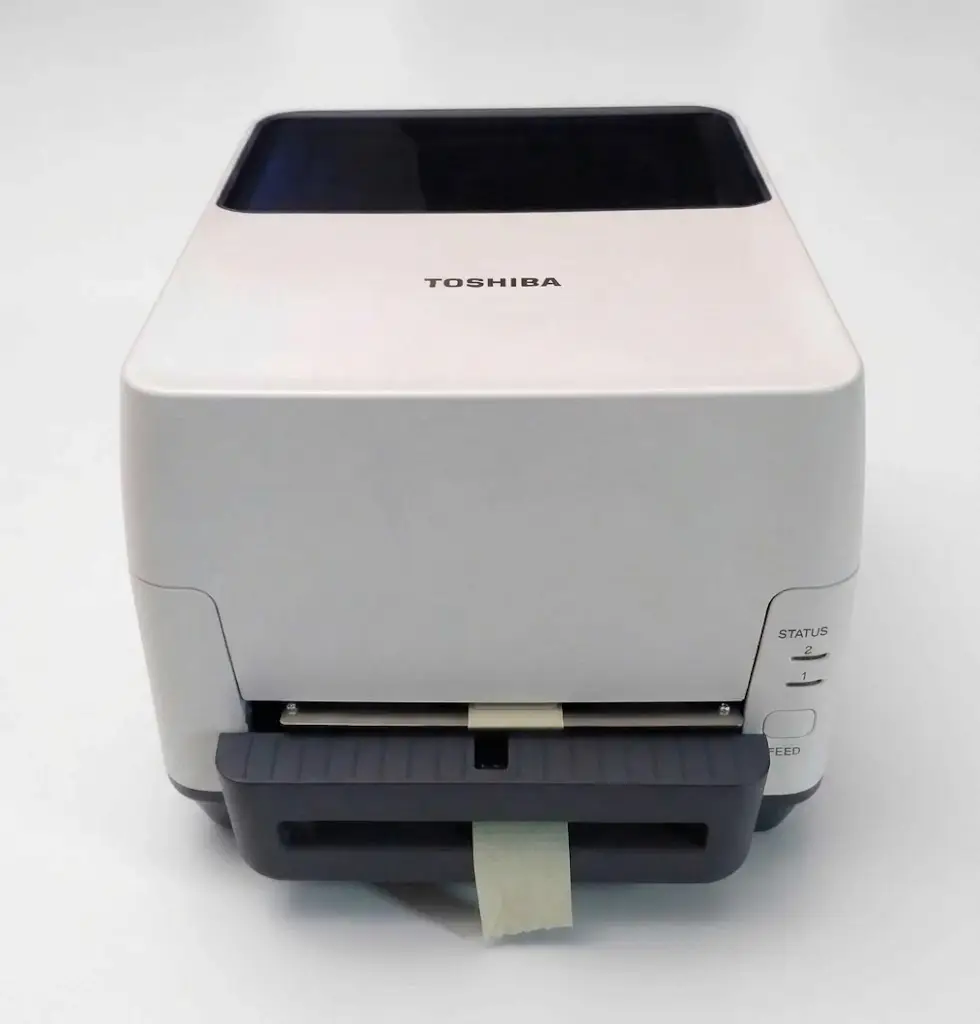
| Feature | What's behind it |
|---|---|
| Print method | Thermal transfer (with ribbon) and direct thermal (without). The T in B-FV4T stands for thermal transfer, the B-FV4D can only do direct thermal. |
| Resolution | TS14 = 300 dpi, roughly 12 dots per millimetre. The GS14 variant has 203 dpi. |
| Print width | about 105.7 mm. "4 inch" is just the name of the size class, 4 × 25.4 would be 101.6 mm. |
| Interfaces | USB 2.0, Ethernet, serial |
| Command language | TPCL, plus emulations for ZPL2, EPL, DPL and IPL |
Before anything arrives at all, two settings in the B-FV Setting Tool have to be right:
command language TPCL and resolution 300 DPI. If the device is on an emulation, it
accepts the commands without any message and prints nothing usable.
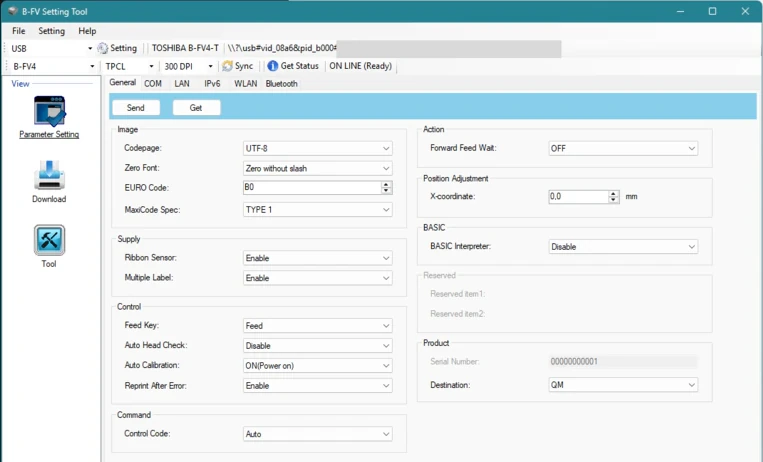
The same tool also shows the USB device path with vid_08a6&pid_b000. Those are the vendor
and product ID you can filter on later.
The print data
The printer gets neither images nor a PDF. It gets text commands in
TPCL, wrapped in STX (0x02) and ETX (0x03). This
function builds a label with a QR code:
function qrLabel(url, count = 1) {
    const STX = '\x02';
    const ETX = '\x03';

    return (
        STX +
        '{D0295,0295,0295|}\n' +
        '{C|}\n' +
        `{XB01;0051,0051,T,M,06,A,0,M2=${url}|}\n` +
        `{XS;I,${String(count).padStart(4, '0')},0002D4000|}\n` +
        ETX +
        '\n'
    );
}
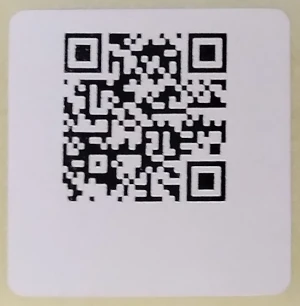
The result is an ordinary string. The page builds it itself, and no server is involved in printing.
The button above the block downloads what qrLabel('https://www.prefabcortex.com')
returns, 111 bytes. STX and ETX are really in there. If you copy finished commands from a
code block, the two invisible characters don't come along, and then the printer simply
prints nothing. It's the same file as Example 2 in the
TPCL article.
Does the printer need a driver?
No. WebUSB talks to the device directly, without a printer driver, print dialog, CUPS or print server. The page produces the command text, the browser pushes it out over USB, the printer executes it. Under Windows the printer driver actually has to go, more on that below.
Does this work in Firefox or Safari?
No. WebUSB only exists in Chromium browsers (Chrome, Edge, Opera, Brave) and only in a
secure context, so over https:// or localhost. Mozilla and Apple have both publicly
said they won't implement WebUSB. They consider direct access from a web page to USB
devices too far-reaching. Waiting for that to change isn't worth it.
Chrome for Android supports WebUSB as well.
The code
Selecting the printer once
The device dialog only opens after a click:
async function selectPrinter() {
    try {
        // filters: [] shows every USB device, filters: [{ vendorId: 0x08a6 }] only the Toshiba
        const device = await navigator.usb.requestDevice({ filters: [] });

        localStorage.setItem('usbVendorId', device.vendorId);
        localStorage.setItem('usbProductId', device.productId);
    } catch (err) {
        // NotFoundError = dialog closed without a selection
        if (err.name !== 'NotFoundError') {
            alert('Error selecting the printer: ' + err.message);
        }
    }
}
Unlike Web Serial, WebUSB also gives you the product name (device.productName). That lets
you find the device again even without stored IDs.
Printing
async function printViaUsb(content) {
    const devices = await navigator.usb.getDevices(); // only devices already granted

    const device = devices.find(
        (d) =>
            d.vendorId === parseInt(localStorage.getItem('usbVendorId')) &&
            d.productId === parseInt(localStorage.getItem('usbProductId')),
    );

    if (!device) {
        throw new Error('No printer set up');
    }

    await device.open();

    try {
        await device.selectConfiguration(1);
        await device.claimInterface(0);
        // TextEncoder turns the text with STX and ETX into bytes for the printer
        await device.transferOut(1, new TextEncoder().encode(content));
    } finally {
        await device.close(); // otherwise the next print can't get in
    }
}
Endpoint 1 and interface 0 are hardcoded here. With a different printer they can be
different. It's cleaner to look up the OUT endpoint:
const alt = device.configuration.interfaces[0].alternate;
const out = alt.endpoints.find(
    (e) => e.direction === 'out' && e.type === 'bulk',
);
await device.transferOut(out.endpointNumber, data);
Putting it together
The button in the interface builds the label and sends it to the printer:
await printViaUsb(qrLabel('https://www.prefabcortex.com'));
"Access denied" at claimInterface
This is the most common failure, and the code isn't to blame. Under Windows the installed
printer driver holds the USB interface exclusively. device.claimInterface(0) then fails
with NetworkError: Access denied or The device is protected. Under Linux the same
happens if the kernel has already attached a driver module to the device.
The only fix is to bind the device to a generic USB driver instead of the printer driver. On Windows that's WinUSB, usually installed with Zadig. After that, Windows no longer sees the printer as a printer. Nothing works through the print dialog any more, everything works through WebUSB. So make that decision deliberately for this device.
If you still want to print from Word, WebUSB is out. Then the only way left is the driver with a print server behind it.
Snags
- Picked the wrong device: with
filters: [], the mouse, keyboard and scanner are in the list too. - Printer off or unplugged:
open()fails, but the permission stays. After plugging it back in, it carries on without a new dialog. - The label doesn't come out: the job arrived, the device just blinks, and only the
feed button pushes the label out. Setting
Forward Feed WaittoOFFwasn't enough for me. Next I'd try dispenser mode, where the label is peeled off the backing paper right away. - Cap the count: a typo in the quantity field shouldn't print a whole roll blank.