Published on
A label printer gets neither a PDF nor an image. It gets text you could type by hand. That's why a label is a few hundred bytes and not a few hundred kilobytes.
The language is called TPCL, Toshiba/TEC Printer Command Language. Most devices can also emulate ZPL2, EPL, DPL and IPL. If the printer is set to one of those emulations, it swallows the commands below without any message.
Further down are two complete print jobs. Above each one is a button that downloads the file with the real bytes. Everything comes from a setup that runs here: a B-FV4T at 300 dpi. Anything I only have from the manual is marked as such.
By "the manual" I mean Toshiba's
External Equipment Interface Specification for the B-FV4 series Opens in a new window,
a PDF of a good 10 MB, 2nd edition, 17 April 2015. It has every command from this post,
but in a different notation. Where this post says {XS;I,0001,0002D4000|}, the manual
says [ESC] XS; I, 0001, 0002D4000 [LF] [NUL]. It's the same command. The printer tells
the two notations apart by the first byte of each command: 1B for [ESC], 7B for {
(chapter 7).
The frame, and why you can't see it
A print job is text between two control characters: STX (0x02) at the start,
ETX (0x03) at the end. In between there's one command per line, each in { … |},
with a vertical bar before the closing brace. There's no more syntax than that.
You can't see the two control characters. If you copy an example out of an article, you
usually don't copy them along. Here's what qr-label.tpcl from further down looks like
as bytes:
00000000: 027b 4430 3239 352c 3032 3935 2c30 3239  .{D0295,0295,029
...
00000060: 2c30 3030 3244 3430 3030 7c7d 0a03 0a    ,0002D4000|}...
First 02, then the commands with a 0a after each one (the last one too), then 03
and one more 0a. There's no null byte, no checksum and no closing command. In the
examples below, <STX> and <ETX> stand in for the two bytes. The downloadable files
contain the real ones.
Coordinates are millimetres, not points
All measurements are tenths of a millimetre. 0060 means 6.0 mm, whether the device
has 203 or 300 dpi. A label you've laid out once sits at the same spot on every printer in
the family. Only values given in points depend on the resolution, for example the module
size of a QR code.
The origin is bottom left, the y-axis points up.
Example 1: a label with three lines of text
<STX>{D0295,0295,0295|}
{C|}
{PC000;0040,0060,15,15,G,00,B=A-1024|}
{PC001;0040,0120,10,10,G,00,B=Regal 3 / Fach 12|}
{PC002;0040,0170,10,10,G,00,B=Beispielartikel|}
{XS;I,0001,0002D4000|}
<ETX>
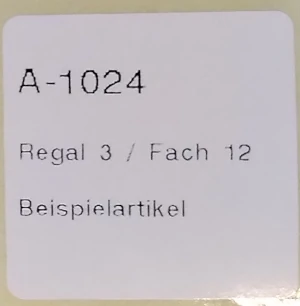
That's four kinds of command. Every job needs three of them:
| Command | Meaning |
|---|---|
{D0295,0295,0295|} |
Label size: pitch, print length, print width in 0.1 mm |
{C|} |
Clear the image buffer. Without it, the second job prints on top of the first |
{PC000;0040,0060,15,15,G,00,B=…|} |
Text field: field number, x, y, horizontal and vertical magnification, font, rotation, data |
{XS;I,0001,0002D4000|} |
Print: I = output, 0001 = quantity |
The font lives in the printer, and the job carries no glyphs and no font file. In return, a character the built-in font doesn't know won't print. Several lines are several fields, with increasing numbers and a decreasing y.
The block 0002D4000 after the quantity packs cut, sensor, print method and speed into
nine characters. I never worked out which digit does what. I took it from an example and
it worked first time. If you print thermal transfer or have a cutter, you'll have to read
the manual page for it: 6.3.13, [ESC] XS.
25 mm on the roll, 29.5 mm in the command
That's not a typo. This is where a label goes wrong first. The roll holds 25 × 25 mm labels:
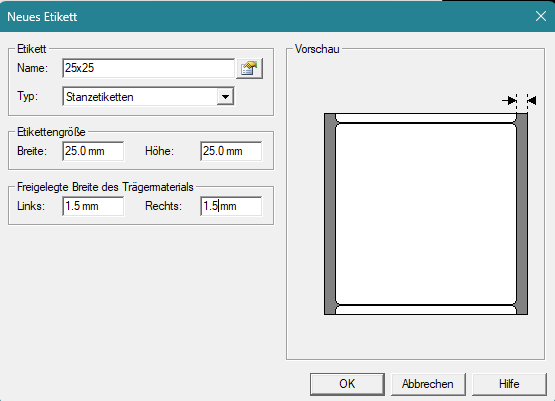
But the number in {D…} is the pitch, the distance from the start of one label to
the start of the next: label plus gap. If you enter 25 there, the print shifts a little
further with every label until it lands next to the sticker.
On my printer all three measurements have the same value, so I can't tell from use which position is which. According to the manual they are pitch, print length and print width (6.3.1).
Example 2: a label with a QR code
<STX>{D0295,0295,0295|}
{C|}
{XB01;0051,0051,T,M,06,A,0,M2=https://www.prefabcortex.com|}
{XS;I,0001,0002D4000|}
<ETX>
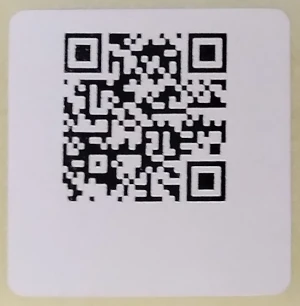
XB draws a linear or 2D code:
| Field | Meaning |
|---|---|
01 |
Field number of the code |
0051,0051 |
x = 5.1 mm, y = 5.1 mm |
T |
Code type, T is the QR code |
M |
Error correction level |
06 |
Module size in points, not millimetres |
A,0 |
Model selection and rotation |
M2=… |
Model 2 and the data |
Watch the module size. It stays fixed, while the number of modules changes with the
content. https://www.prefabcortex.com has 28 characters and gives 29 × 29 modules. At 6
points per module that's 174 points. 300 dpi is 11.8 points per millimetre, so the code
comes out at 14.7 mm and there's margin left on 25 mm. From 43 characters the QR
standard jumps to 33 × 33 modules, which is 16.7 mm. A few characters more and the code no
longer fits on the label, although nothing in the command has changed.
The other way round: below about 4 points of module size at 300 dpi, no phone reads the code reliably any more.
How does the job get to the printer?
Any way that gets bytes to the device. TPCL is plain text, there's no handshake. One of the files from above is enough:
cat qr-label.tpcl > /dev/usb/lp0          # serial or USB on Linux
nc printer.lan 9100 < qr-label.tpcl       # over the network
It also works straight from the browser, without a driver or print server. How is described in Driving a label printer over WebUSB.
The printer doesn't report whether the print worked. The job only goes one way. If you need the status, you ask for it with a separate command.
What else it can do
The manual also covers lines and boxes (6.3.6), vector fonts at any size (6.3.8), stored forms you later only send data into (6.3.23 to 6.3.25), and more code types (6.3.9). For a sticker with a number and a QR code you don't need any of it.